1
You must first make certain to have created a Mailbox. Please note that it may take 10-15 minutes for a new mailbox to become active, so please wait before moving to Step 2.
2
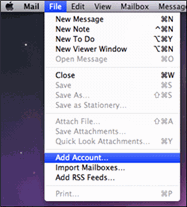
In Mac Mail, click File > Add Account.
3
Enter your name, Exchange mailbox email address, and Exchange mailbox password.
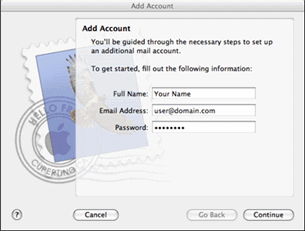
Click Continue.
4
The Incoming Mail Server settings are as follows:
Account Type: Exchange 2007IMAP
Description: Exchange
Incoming Mail Server: imap2.exchangecentral.net
User Name: user@domain.com
Password: <user selected>
Outlook Web Access Server: webmail.exchangecentral.netowa2010.exchangecentral.net
Click Continue.
5
The Outgoing Mail Server settings are as follows:
Description: Exchange
Outgoing Mail Server: smtp2.exchangecentral.net
Use only this server: Checked
Use Authentication: Checked
User Name: user@domain.com
Password: <user selected>
Click Continue.
6
Review the Account Summary and then check Take account online.
Click Create.
