Website Builder
Developing web sites can be complicated using traditional tools, but we make it easy with SiteBuilderWebsite Builder. Whether you need a single- or multiple-page web site, our tools will guide you every step of the way.
(If you are interested in using separate software to create or upload files, see the FTP Overview topic.)
Website Builder is a template-driven, online web site development tool. In other words, using only a browser, you can create a rich, customized web site without any knowledge of HTML code. HTML code is the basic building block of a Web page. Some people prefer to work directly with HTML code, but tools such as SiteBuilderWebsite Builder, Dreamweaver or FrontPage can manage the code for you, allowing you to focus on the "look and feel" of your web site. Please do not activate SiteBuilderWebsite Builderif you intend to use Domain Forwarding.
|

|
Before you access SiteBuilderWebsite Builder, please allow pop up windows in your Internet browser. Your browser may automatically block pop-up windows, or you may have something like the Yahoo or Google toolbar installed, whose features include pop-up blocking. To enable pop-up windows, please follow the instructions for your particular browser. Most browsers allow you to either temporarily or permanently allow pop-up access to specific web sites.
|
 To enable SiteBuilderWebsite Builder:
|
1
|
On the home page of SiteControl under the Quick Access ToolsManage Services section, click SiteBuilderWebsite. Alternatively, click Website under Manage Services and then SiteBuilder.
On the subsequent page, click Website Builder.
|
|
2
|
Next, select the level of SiteBuilderWebsite Builder options you require and click the appropriate Add or PurchaseActivate button. NOTE: The Free version's attributes may differ depending on your plan.
|
|
3
|
Once the confirmation page appears, click Back to Overview to return to the SiteBuilderWebsite Builder administration page.
|
|
4
|
Once fully activated, you should see the Edit Site in SiteBuilder, View Site, and Delete links become activeEdit My Website and Delete links:
 
Click Edit Site in SiteBuilderEdit My Website to start building your site. Again, be sure to enable pop-ups on your browser.
|
|
5
|
Once the new window opens, follow the step-by-step instructions.
|
|
6
|
If you ever decide to upgrade/downgrade your Website Builder plan, please return to the Website Builder administration page in SiteControl.
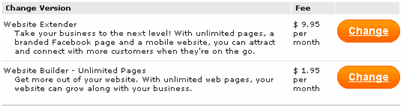
Just choose the desired plan and click its Change button.
|
SiteBuilderWebsite Builder includes built-in instructions accessible by clicking the Help link while editing your site.
