View & Update Orders Search & Export Orders
View & Update Orders
Search & Export Orders
|
1 |
Click Orders tab along the top. |
|
2 |
The Orders page allows you to view all of your orders.
|
|
3 |
To view the details of an order, hover your mouse over the appropriate order and click its view link (click delete to delete the order). The details page displays Order Details, Payment Information, Product Information and Order Status. |
|
4 |
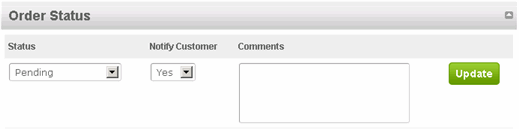
To update the status of an order, select the appropriate Status using the dropdown menu in the Order Status section.
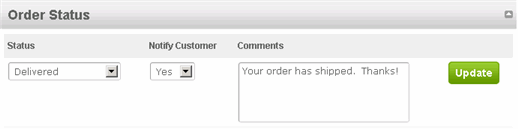
For example, let's change the status from Pending to Delivered and send a notice to the customer with a comment:
Click Update. |
|
5 |
Below the Status Update option is a log of every status set for this order.
As you can see, it displays the original Pending status as well as the subsequent Delivered status (including the comment). |
|
1 |
Click Orders tab along the top. |
|
2 |
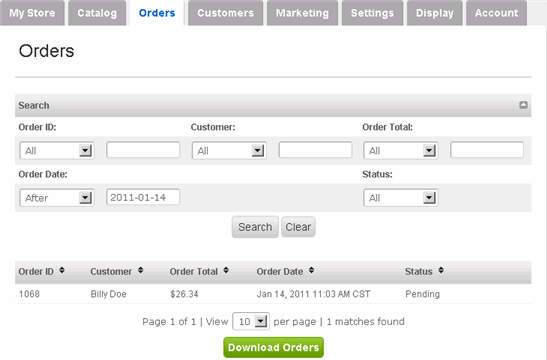
The Orders page allows you to view and search all of your orders.
|
|
3 |
In the Search section, you can search using five different parameters: Order ID, Order Date, Customer, Order Total and Status. Use the appropriate parameter's dropdown menu and enter the search term. Click Search. |
|
4 |
To export your orders (in Excel form), simply click Download Orders at the bottom of the page. |