Download the client software Install the client software
In order to connect your computer to the DataProtect server, you must download and install the DataProtect client.
Download the client software
Install the client software
 To download the client software:
|
1 |
Return to the DataProtect Overview page in Sitecontrol. |
|
2 |
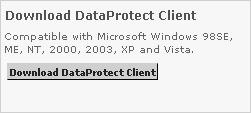
Scroll down to the DataProtect Utilities section of the page.
Click Download DataProtectClient. |
|
3 |
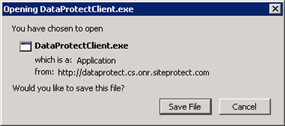
A prompt asking you to save a file should appear.
Click Save File. The file name is DataProtect.exe. |
To install the client software:
|
1 |
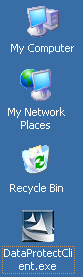
Locate the file, DataProtect.exe in your computer (most likely on your Desktop).
Double-click the DataProtect.exe icon. |
|
2 |
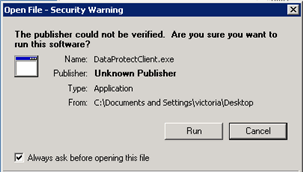
If a Security Warning prompt appears, then click Run. Please allow a few seconds for the install wizard to initiate. |
|
3 |
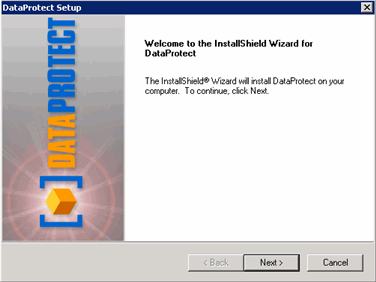
Once the wizard starts,
click Next. |
|
4 |
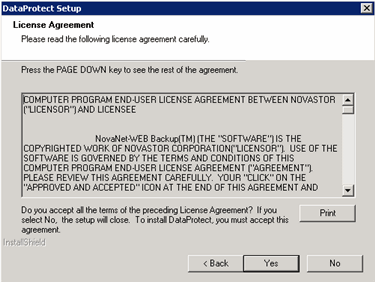
Read the license agreement,
and then click Yes. |
|
5 |
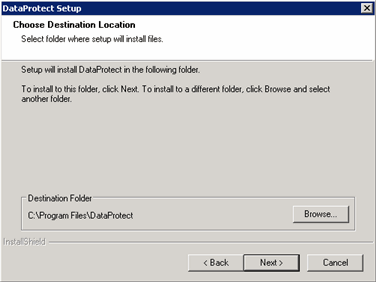
Select the installation destination. We suggest using the default location, but if you wish to change it, then click Browse.
Click Next. |
|
6 |
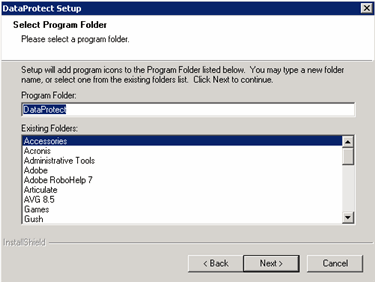
Select the folder name in which the files will be installed. We suggest using the default folder name.
Click Next. |
|
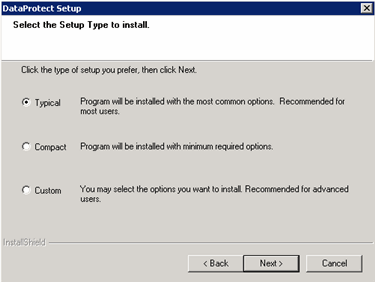
7 |
Select the type of installation. We suggest "Typical" for most users.
Click Next. |
|
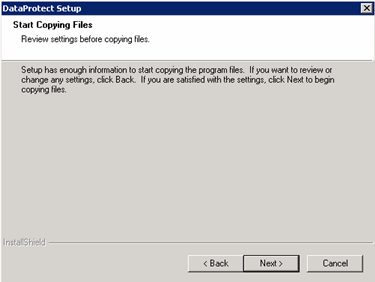
8 |
The wizard is now ready to install the files.
Click Next. |
|
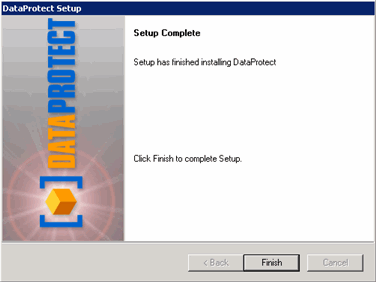
9 |
Once the installation has been completed, click Finish.
|
|
10 |
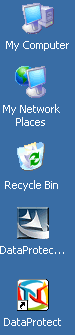
Return to the Desktop and locate the DataProtect program icon.
A shortcut icon to the DataProtect program should now be visible. You may now delete the installation file. |