Send Email, Facebook and Twitter Announcements:
Connect to your customers using both social media (Facebook, Twitter) and e-mail.
Send Email, Facebook and Twitter Announcements:
|
1 |
Click Marketing tab along the top, followed by the Announcements submenu option. |
|
2 |
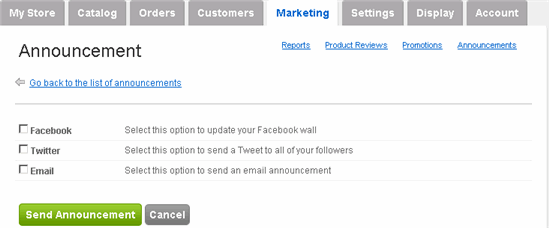
There are three means of sending announcements: Click Add new announcement button on the right side and select the medium of your choice.
|
|
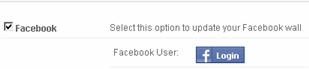
To send a Facebook announcement, check the box next to Facebook.
Click the Login button and enter your Facebook account information. Enter your announcement and click Send Announcement. |
|
|
To send a Twitter announcement, check the box next to Twitter.
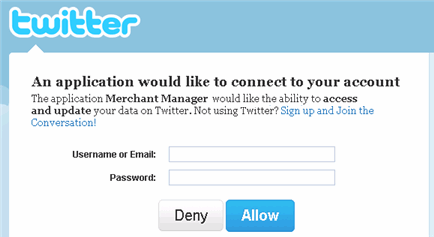
Click the Connect with Twitter button. The following pop-up window appears:
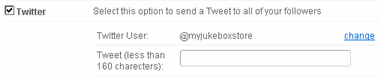
Enter your Twitter account information and click Allow. If prompted a second time, please click Allow again. You may also be asked to log in to the Merchant Manager admin again. Once Merchant Manager connects to your Twitter account (the Twitter user name appears), enter your 160 character or less message in the Tweet field and click Send Announcement.
If you don't see your Twitter user name or wish to switch to a different Twitter account, then click change. |
|
|
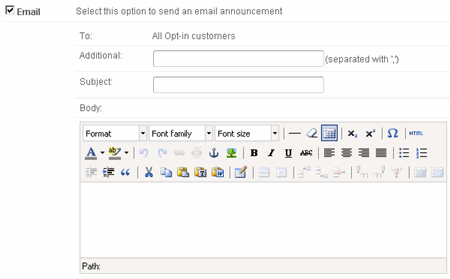
To send an e-mail announcement, check the box next to Email.
It automatically sends to all opt-in customers, but you can include additional recipients in the Additional: field (separated by commas). Enter a Subject line and the body. Click Send Announcement. |
|
|
6 |
NOTE: All sent announcements appear on the main Announcements page. |