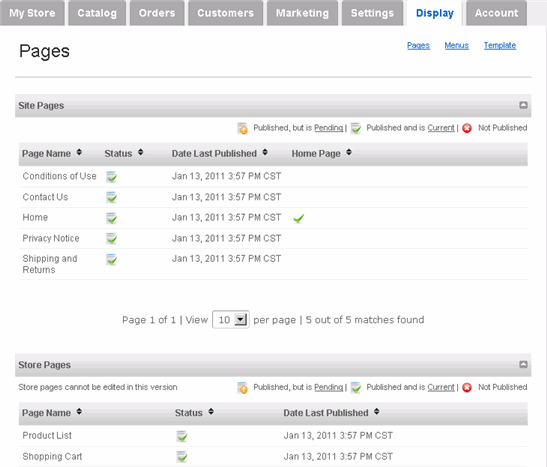
In addition to product and information pages that Merchant Manager builds for you in your store, you can create your own pages that incorporate into the store's navigation and appearance. For most owners, the pre-existing pages should suffice, in which case you only need to customize these pages to fit your store. Please note the difference between Site Pages and Store Pages, the latter of which is integral to the operation of your store and cannot be edited.
By default, there are several pre-existing pages on your store:
 Conditions of Use: Rules or conditions for using your store.
Contact Us: Contact information for your store or business.
Home: Your store's home page.
Privacy Notice: Description of how you plan to use your customer's data.
Shipping and Returns: Description of your store's shipping and returns policy.
Product List: Displays your products. This is a Store Page and it cannot be edited.
Shopping Cart: Displays shopping cart. This is a Store Page and it cannot be edited.
All Site Pages contain placeholder content, so you must edit them accordingly. Each Site Page can be customized, deleted, or assigned to be the store's home page (but we generally recommend that the Home page be assigned as the store's home page).
 Customize or Create Site Pages On Your Store:
|
1 |
Click Display tab along the top. |
|
2 |
Hover your mouse over the page you wish to customize. Once it turns grey, click its edit link. (Alternatively, click Add new site page button on the right side to create a new page. Note, if you create a new page, then you must assign it a place on the Header Menu or Footer Menu.) |
|
3 |
The Page edit page appears:
You can assign any page to be the store's Home page by selecting Yes under the Home Page option. Note that you can assign only one page to be the Home page. |
|
4 |
You can change the name of the page to whatever you wish under Page Name. |
|
5 |
On each page, you can enter META information for search engine optimization. For more information, please refer to the SEO section of the Help documentation. |
|
6 |
As for the actual content, you can make it as simple or complex as you like. Use the built-in editing tools to organize and accentuate content - you can even use HTML (note the HTML option on the top line of the editing tool). If you're unfamiliar with any of the editing tool options, then hover your mouse over it and a text description will appear. Alternatively, you can copy and paste the content (plain text or HTML) from another source. |
|
7 |
You can preview your changes at any time by clicking Preview on the upper-right side of the page. |
|
8 |
If you're happy with the preview, then publish it to the store by clicking Publish on the upper-right side of the page. (Repeat with other pages, as necessary.) |
|
9 |
We suggest that you visit your store to verify that the page appears correctly. |
|
10 |
If you prefer save your changes and publish to the store at a later time, then click Save. But keep in mind that for the changes to appear on the store itself, you must publish the page. |

