One of the core functions of a shopping cart is product management. Merchant Manager provides a clear, simple interface to add, edit and tailor your products without clutter and unnecessary complexity.
The instructions below sequentially follow the steps listed on the Add New Product page, but if you rather skip to a particular section, then use the links below.
|
1
|
Click Catalog tab along the top, followed by the Products submenu option.
|
|
2
|
The Products page appears with a list of your products.
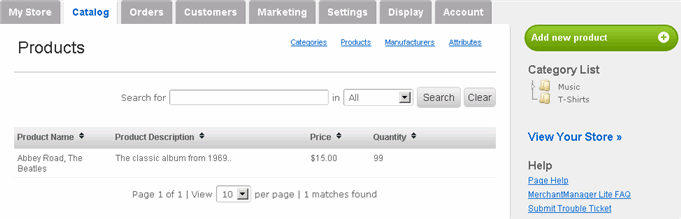
Let's add a new product. In this instance, let's add a t-shirt.
|
|
3
|
Click Add new product button on the right side.
|
|
4
|
Enter Product Name. For example, "Rolling Stones T-Shirt".

|
|
5
|
Enter Product Description.
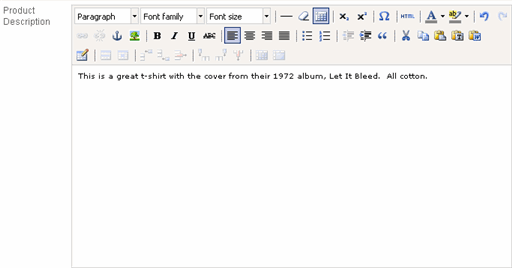
If you want more than plain text, then please use the built-in editing tool.
|
|
6
|
Select the product's Manufacturer (if any) using the dropdown menu.

If you haven't already created the one you need, then create a new one here without having to return to the Manufacturers section of the admin.
|
|
7
|
Enter Model Number (if any).

|
|
8
|
Enter Weight in pounds, ounces, kilograms or grams.

|
|
9
|
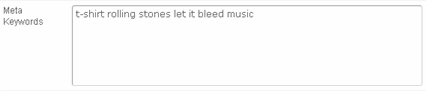
Enter (if any).
|
|
10
|
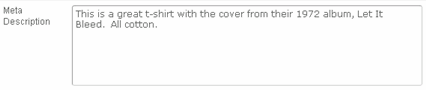
Enter (if any).
|
|
11
|
By default, the Disabled option should be set to No. In the event you later wish to not display this product, then set it to Yes.

|
|
12
|
Select the Page To Show After Purchase using the dropdown menu.

By default, it's set to display the Shopping Cart after a customer clicks the Purchase/Add To Cart button, but you can set to display any page of your choice.
|
|
13
|
To display an image for this product (if any), clickImages to expand the option.
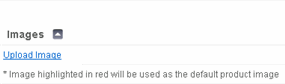
Click Upload Image to open the image file manager.
-
On the image file manager, click Upload tab, followed by Browse button.
-
Locate the image file on your computer and click Open.
-
You should now see the filename in the Upload tab. Click Upload button on lower-right.
-
Click Browse tab.
-
Locate the image and click it. You should now see a thumbnail size of the image on the Images section.
-
To delete the image, hover your mouse over it and click the red X.
|
|
14
|
Expand the Categories option.
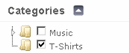
Check the box next to the appropriate category. If it's a subcategory, then click the small arrow next to the parent category to display its subcategory.
|
|
15
|
Expand the Product Attributes option.

Before we continue, let's quickly define Product Attributes. Product Attributes are variations of a single product customers select that may or may not have varying pricing. For example, size and color are attributes, as are virtually any option you would like to offer for a particular product.
If you have already created the desired attribute, then select it from the Option dropdown menu, along with its Value. Click Add.
If you have not already created them, then you can create them here without having to go to the Attributes section of the admin interface.
Since we are adding a t-shirt, let's create an attribute for color.
-
Using the Option dropdown menu, select New Attribute.

-
The Option dropdown menu now turns into a text field with a green + sign. Enter the name of the attribute, in this case, "Color", and click the + button.

Doing so will add "Color" to the Option dropdown menu.
-
Now it's time to add values to the attribute. On the Value dropdown menu, select New Value. When the dropdown menu turns to a text field, enter the name of a value, in this case, "White", and click the + button.

Doing so will add "White" to the Value dropdown menu.
-
Once the Option and Value you desire are aligned, click Add.

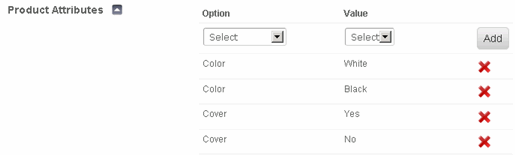
You should now see the Color - White option.
-
Next, let's add another color. On the Option dropdown menu, select Color, followed by New Value under the Value dropdown menu. Enter "Black" and click the green + button. Again, if you're satisfied with the Option and Value alignment, then click Add. You should now see both White and Black options listed.

-
Repeat as necessary. To delete any option, click its red X icon.
The options for Product Attributes are limited only by your product line and imagination. In addition to obvious attributes like color and size, you could also create an attribute that requires only a Yes or No option. For example, you sell turntables with or without a cover. In this case, add an Option called "Cover" with two Values - "Yes" and "No":
|
|
16
|
Expand Product Options option.
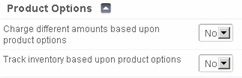
If you have Product Attributes and would like to charge different amounts based on the attribute selected, then change the Charge different amounts based upon product options to Yes. Doing so will automatically expand the Price and Taxes option immediately below it.
If you have Product Attributes and would like to track inventory at the attribute level rather than the product level, then change the Track inventory based upon product options to Yes. Doing so will automatically expand the Inventory option. The difference between tracking inventory at the product level versus the attribute level is the same as the difference between knowing that you have 100 t-shirts versus 50 white t-shirts and 50 black t-shirts.
|
|
17
|
Expand Price and Taxes option.
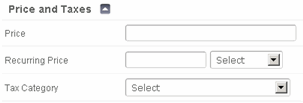
Enter the Price.
If it's a product with a recurring charge, then enter the Recurring Price instead and its billing cycle (Daily, Weekly, Monthly, Quarterly, Semi-yearly, Yearly)
If you configured tax categories and wish to apply it to this product, then select the Tax Category using the dropdown menu.
|
|
18
|
Expand Inventory option.
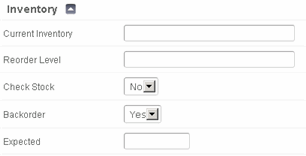
Enter the product's current available quantity for sale in the Current Inventory field. NOTE: This number will automatically reflect the latest quantity based on ALL orders, regardless of order status.
Enter the quantity at which you wish to reorder the product in the Reorder Level field. When inventory reaches this level, a notification will be sent to you.
Change the Check Stock option to Yes if you want to ensure sufficient inventory for a product prior to allowing a customer to checkout. Leave it at No if you prefer to accept the order regardless of inventory level.
Change the Backorder option to No if you do not want to allow customers to order an item that is already out of stock. Leave it at Yes if you want to accept orders of an item that is out of stock, but plan to restock soon.
|
|
19
|
Expand Related Products option.
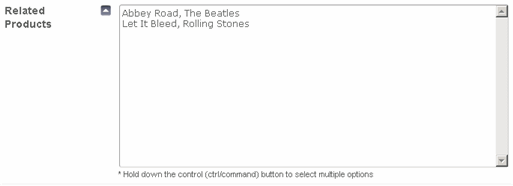
Related Products allow you to display other products related to the product the customer is viewing. In our running example, we're adding a product called Rolling Stones T-Shirt. Since our store also sells Rolling Stones CDs, we can connect the two here.
|
|
20
|
Expand Digital Downloads option.

Were this product a digital-only product (for example, your store sells MP3s or digital photographs) or a physical product that includes a digital option, then you can upload that file here. Once uploaded, customers who purchase the product will be allowed to download the file after checkout. Please note that there is currently a 1 GB (or 1000 MB) limit for your digital downloads account.
Click Add Files to open the file manager.
-
On the file manager, click Upload tab, followed by Browse button.
-
Locate the image file on your computer and click Open.
-
You should now see the filename in the Upload tab. Click Upload button on lower-right.
-
Click Browse tab.
-
Locate the file and click it. You should now see the name of the file on the Digital Downloads section.
-
To edit the name of the file (as it appears to your customers) and to set the number of downloads per purchase, hover your mouse over it and click edit. Click Save Changes.
-
To delete the file, hover your mouse over it and click delete.
Once a digital downloadable product order is received and approved, customers can retrieve their digital product in their My Account Downloadable Purchases page. We suggest adding a description to the product page instructing customers to access the digital file(s) accordingly.
|
|
21
|
Click Save Changes. Repeat as necessary.
|
 Add Products
