Add Categories of Products Edit or Delete Categories
Unless you have a small number of products or services to offer, we suggest that you organize your products by categories (and even subcategories). The list of categories persistently appear on the left side of the store, so it's always visible to your customers. (On the admin interface, the categories list can be found on the right side.)
Add Categories of Products
Edit or Delete Categories
|
1 |
Click Catalog tab along the top. |
|
2 |
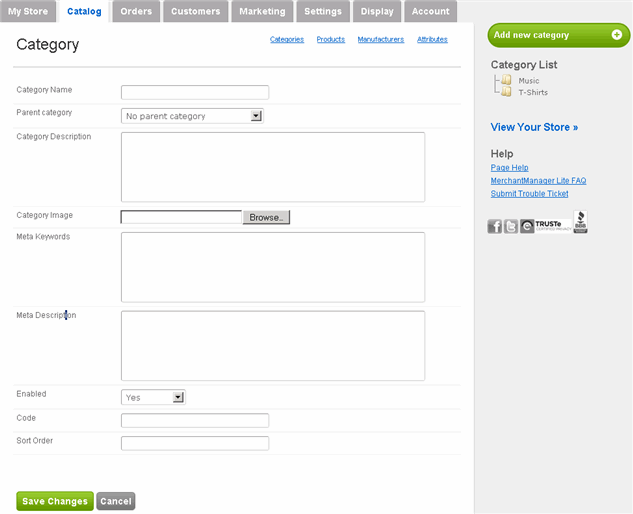
The Add new category page appears by default:
Let's create a category called T-Shirts. |
|
3 |
Enter the Category Name, in this case, "T-Shirts". |
|
4 |
If this category is in fact a subcategory of an already-existing category, then select that existing parent category in the Parent Category dropdown menu. Otherwise, leave it as-is. |
|
5 |
OPTIONAL: Enter a brief description of the category in the Category Description text box. |
|
6 |
OPTIONAL: Display a small image next to this category. Click Browse next to Category Image, locate the image file in your computer, and click Open. |
|
7 |
OPTIONAL: Enter keywords and a description for this category in the respective Meta text boxes to for search engine optimization. |
|
8 |
By default, the Enabled option should be set to Yes. If you later decide to not use this category, then set it to No. |
|
9 |
If you have many categories and wish to assign each one a descriptive code, enter it in the Code field. |
|
10 |
Arrange the display order of your categories on the store using numerical values. The lower the number, the higher its place on the store categories list. If you leave it blank, then it will automatically set it to 0. |
|
11 |
Click Save Changes. |
|
12 |
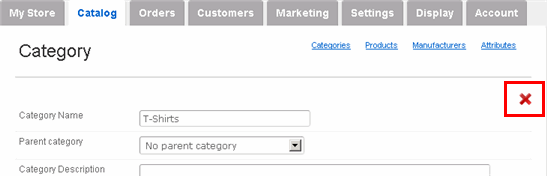
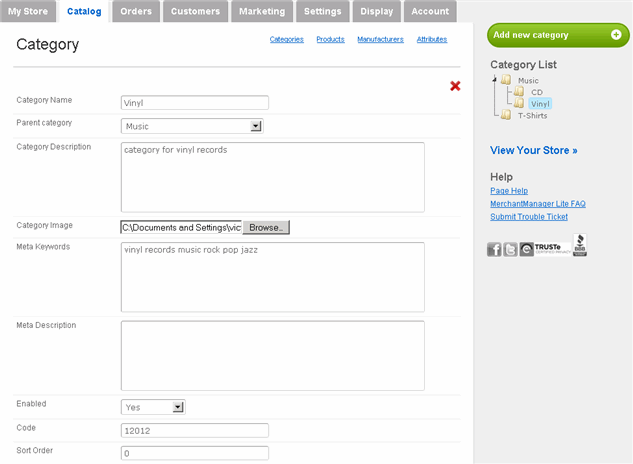
Once you save it, a red X appears on the upper-right side.
The X is an indication that not only has it been saved, but also that you can immediately edit that category. However, do NOT click X unless you want to delete the category. |
|
13 |
To add the next category, click Add new category on the right side. Always click Add new category so that you don't accidentally overwrite an existing category. |
 Edit or Delete An Existing Category:
|
1 |
Click Catalog tab along the top. |
|
2 |
On the right side of the interface, click the appropriate category under the Category List.
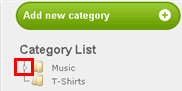
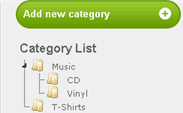
If there are subcategories, then click the small arrow next to the parent category (as highlighted above). The subcategories will then be exposed:
|
|
3 |
Once you click the category (or subcategory) you wish to edit, that category will be highlighted under the Category List, the category's details appear, as well as the red X.
|
|
4 |
Edit the category as needed and click Save Changes. |
|
5 |
To delete a category, click the red X. When the confirmation message appears, click OK. |
|
|
Deleting a category does not delete the products associated with the category. Such products will remain category-less until manually assigned to another category. |