Add Product Attributes:
Product Attributes are variations of a single product customers select that may or may not have varying pricing. For example, size and color are attributes, as are virtually any option you would like to offer for a particular product.
Add Product Attributes:
|
1 |
Click Catalog tab along the top, followed by the Attributes submenu option. |
|
2 |
Click Add new option button on the right side. |
|
3 |
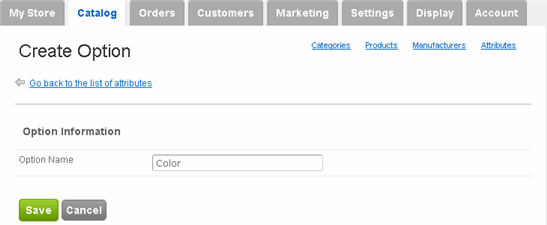
On the subsequent Create Option page, enter the name of the attribute in the Option Name field. For example, "Color".
Click Save. |
|
4 |
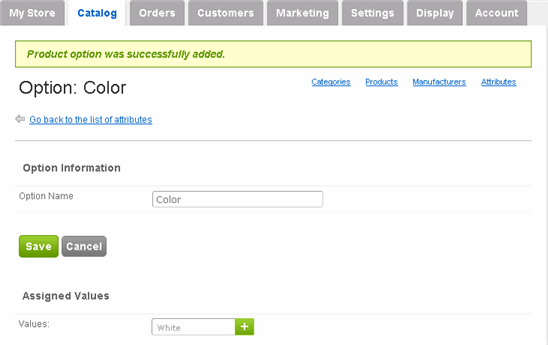
A confirmation message appears at the top and the Assigned Values field appears below the Save button. For each attribute, in this case, Color, we must assign a value. For example, the color White.
Enter the value in the Values field and click the green + button. |
|
5 |
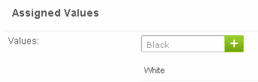
Once it's added, you can add another value (for example, the color Black) and click the green + button again. Repeat as necessary.
You can delete any of values by hovering your mouse over it and clicking its delete link. |
Edit or Delete Existing Attributes:
|
1 |
Click Catalog tab along the top, followed by the Attributes submenu option. |
|
2 |
Hover your mouse over the attribute you wish to edit and click its edit link (or delete if you wish to delete the product). |
|
3 |
Edit as necessary. |
|
4 |
Click Save. |