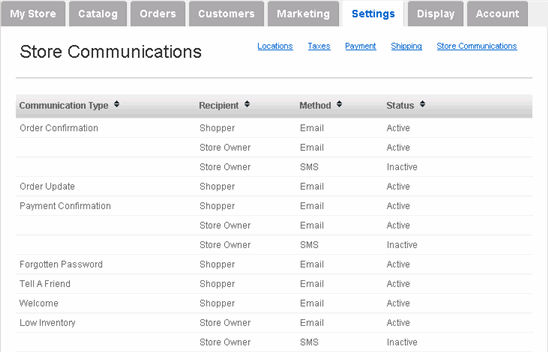
Your store will automatically send e-mail notifications to your customers and to you (the store owner) based on several triggering events.
 Order Confirmation: E-mail sent to you and/or your customers with details of their orders.
Order Update: E-mail sent to you and/or your customers whenever an order status is changed.
Payment Confirmation: E-mail sent to you and/or your customers with payment details.
Forgotten Password: E-mail sent to your customers when they forget their passwords.
Tell A Friend: If a customer decides that one of your products would be of interest to a friend, then that friend would receive this e-mail.
Welcome: E-mail sent to new customers that register at your store.
Low Inventory: E-mail sent to you with a list of products that are low in inventory.
You can enable/disable any of these e-mail messages.
 Customize Store Email Messages to Customers and to Yourself:
|
1 |
Click Settings tab along the top, followed by the Store Communications submenu option. |
|
2 |
Hover your mouse over the e-mail template you wish to customize. Once it turns grey, click its edit link. |
|
3 |
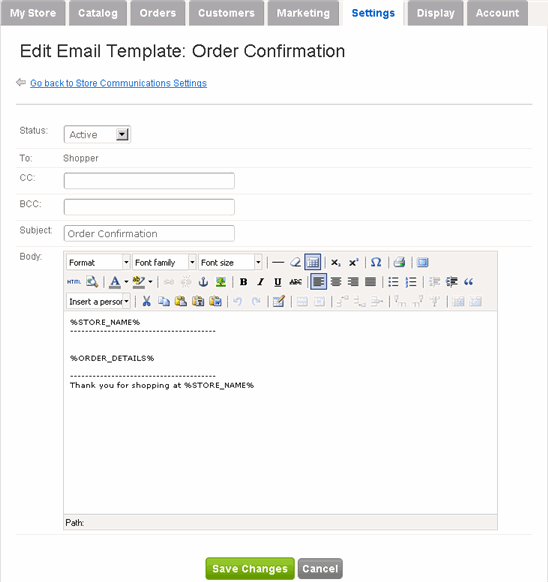
The Edit Email Template page appears:
You can disable any of the e-mail notifications by changing its Status. |
|
4 |
Depending on which template you chose, the recipient (To:) of the e-mail is predetermined and cannot be changed. However, you are free to add secondary recipients in the CC: and BCC: fields. |
|
5 |
You can change the Subject: line as you wish. For example, you could add your company name. |
|
|
As for the actual content, you can make it as simple or complex as you like. Use the built-in editing tools to organize and accentuate content - you can even use HTML (note the HTML option in the editing tool on the left side). If you're unfamiliar with any of the editing tool options, then hover your mouse over it and a text description will appear. Alternatively, you can copy and paste the content (plain text or HTML) from another source. You can Preview the e-mail by clicking the icon to the immediate right of the HTML icon. |
|
6 |
Please note the pre-existing content bracketed by the % symbol - it should not be deleted. These are variables that will be automatically replaced by the appropriate information on the e-mail itself. |
|
7 |
Click Save Changes. Repeat with other templates, as necessary. |
|
8 |
We suggest that you place a test order on your store to verify that the e-mail appears correctly. |