Customize page color and font:
Every page on your store is initially derived from a single template. You can customize the background color and font as you see fit.
Customize page color and font:
|
1 |
Click Display tab along the top, followed by the Template submenu option. |
|
2 |
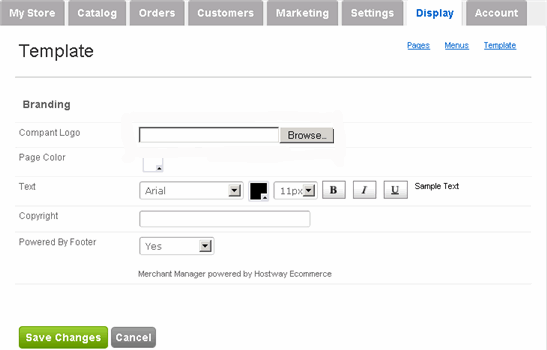
The Template page appears:
|
|
3 |
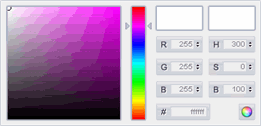
To change the background color of the pages on your store, click the color swatch next to Page Color. When the swatch expands,
enter the color values. Alternatively, drag the spectrum arrows up/down and click-and-drag the mouse pointer around the shaded box to the desired shade (you must click-and-drag, not just click the desired shade). |
|
4 |
To change the store text font, select the appropriate font using the dropdown menu next to Text; to change the font color, click the color swatch; to change the font size, use the dropdown menu. Please note the "Sample Text" that will change instantly in response to your selections. |
|
5 |
Click Save Changes. |
|
6 |
Click View Your Store on the right side to verify that your logo appears at the top of the store. |