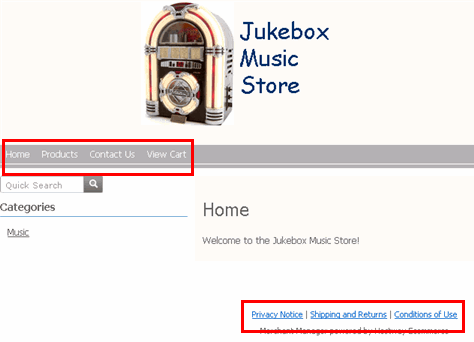
Once your Site Pages are ready, you can adjust the store navigation menu on which they appear. By default, your store will display the following navigation of menu options. Let's look at our sample store:
Note the Header menu options (Home, Products, Contact Us, View Cart) and the Footer menu options (Privacy Notice, Shipping and Returns, Conditions of Use). You can change the order of the menu options, alternate between header and footer location, and create new menu options for any of your pages not added by default.
On the Menus admin page, you can adjust as needed.
 Customize Store Navigation:
|
1 |
Click Display tab along the top, followed by the Menus submenu option. |
|
2 |
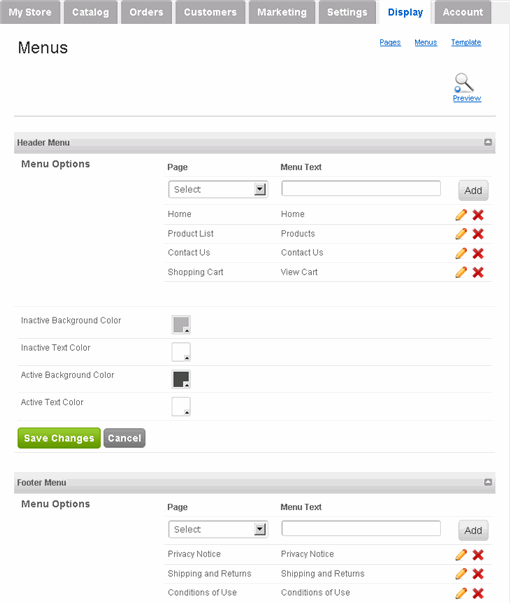
The Menus page appears:
As you can see, the order in which selected pages are listed in the Header and Footer sections match the order in which they're displayed on the store. Top-to-bottom listing on the Menus page appear left-to-right on the store itself. |
|
3 |
To adjust the order, hover your mouse over the desired page (a green up/down arrows icon appears) and click-and-drag it up or down.
|
|
4 |
To change the name of the menu item, for example, from "View Cart" to "Cart", click the yellow pencil icon.
A text field appears in which you can enter whatever you wish. Next, click the green Check icon next to it. |
|
5 |
To create a new menu item, select the page from the Page dropdown menu and then enter a name for it in the Menu Text field. Click Add. Once added, be sure to adjust its ordering as needed. |
|
6 |
In addition to customizing the text, you can also change the background color of the Header menu and font on both inactive and active states.
Inactive Background Color refers to the color of the menu when a mouse is not hovered over it. For example, let's look at our sample store:
Active Background Color refers to the color of the menu when a mouse is hovered over it.
Likewise with Text Color. NOTE: The Footer menu color cannot be customized. |
|
7 |
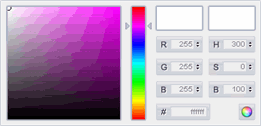
To change the store menu background or menu text color, click the appropriate color swatch. When the swatch expands,
enter the color values. Alternatively, drag the spectrum arrows up/down and click-and-drag the mouse pointer around the shaded box to the desired shade (you must click-and-drag, not just click the desired shade). Once you have selected the color using the swatch, click Save Changes. |
|
8 |
You can preview any change by clicking Preview (on the upper-right side). |
|
9 |
If you would like to disable the "Powered By" footer on the store, then click Display tab followed by the Template submenu option. Change the Powered By Footer option to No and click Save Changes. |