Customers can of your products so that it becomes visible to everyone. But in order to make it visible, you must approve it first.
|
1
|
Click Marketing tab along the top, followed by the Promotions submenu option.
|
|
2
|
There are five types of promotions and discounts:
Use the dropdown menu below the submenu options to select the desired promotion.
Click Add new button on the right side.
(To edit an existing promotion, return to the main Promotions page, select the appropriate promotion on the dropdown menu, hover your mouse over it, click its edit link (click delete to delete the promotion), and click Save.)
|
|
3
|
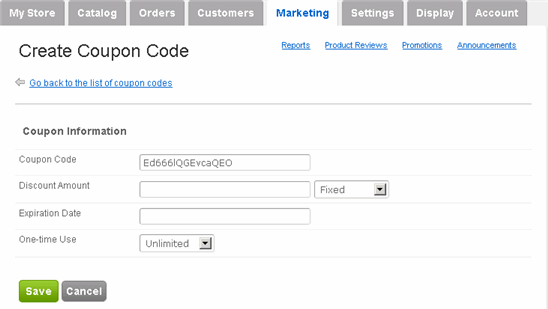
Coupon Code allows you to create a special code to give to customers that unlocks a discount. You determine the amount, expiration date, and frequency of use.
-
Coupon Code: This is an automatically generated code. You can modify it if you wish.
-
Discount Amount: Determine either the Fixed amount to discount or the Percent using the dropdown menu. For example, to give a fixed discount of $5 regardless of total checkout amount, then enter "5.00" and select Fixed; alternatively, to give a 10% discount of the checkout total amount, then enter "10" and select Percent.
-
Expiration Date: Select expiration date of this coupon. If none, then leave it blank.
-
One-time Use: Select the frequency of this coupon - Unlimited usage or One-time only.
Click Save.
|
|
4
|
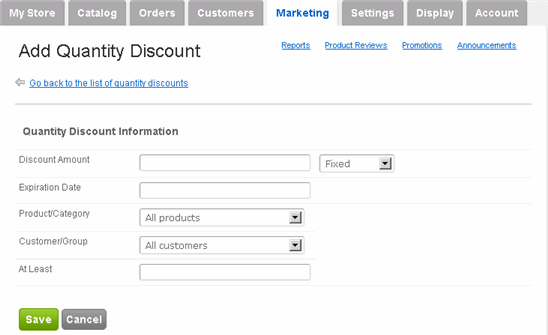
Quantity Discount allows you to create discount for customers that purchase a minimum number of a product.
-
Discount Amount: Determine either the Fixed amount to discount or the Percent using the dropdown menu. For example, to give a fixed discount of $5 regardless of total checkout amount, then enter "5.00" and select Fixed; alternatively, to give a 10% discount of the checkout total amount, then enter "10" and select Percent.
-
Expiration Date: Select expiration date of this coupon. If none, then leave it blank.
-
Product/Category: If you wish restrict the application of this discount only to certain products or categories, then select it using the dropdown menu.
-
Customer/Group: If you wish restrict the application of this discount only to certain customers or groups, then select it using the dropdown menu.
-
At Least: Enter the minimum quantity of a product that must be purchased for this discount to trigger.
Click Save.
|
|
5
|
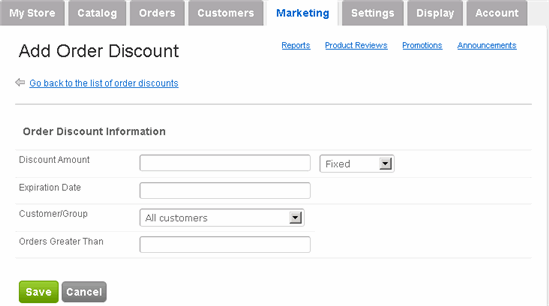
Order Total Discount allows you to create discount for customers that spend a specific minimum amount.
-
Discount Amount: Determine either the Fixed amount to discount or the Percent using the dropdown menu. For example, to give a fixed discount of $5 regardless of total checkout amount, then enter "5.00" and select Fixed; alternatively, to give a 10% discount of the checkout total amount, then enter "10" and select Percent.
-
Expiration Date: Select expiration date of this coupon. If none, then leave it blank.
-
Customer/Group: If you wish restrict the application of this discount only to certain customers or groups, then select it using the dropdown menu.
-
Orders Greater Than: Enter the minimum total amount at which this discount triggers.
Click Save.
|
|
6
|
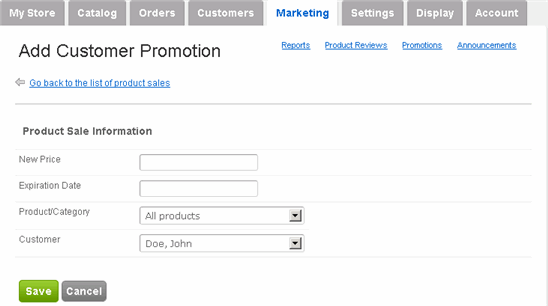
Customer Promotion allows you to create discount for specific customers.
-
New Price: Determine the price of the product that applies only to this customer.
-
Expiration Date: Select expiration date of this coupon. If none, then leave it blank.
-
Product/Category: Select the product (or an entire category) to which the new price should be applied.
-
Customer: Select the customer for whom this promotion applies.
Click Save.
|
|
7
|
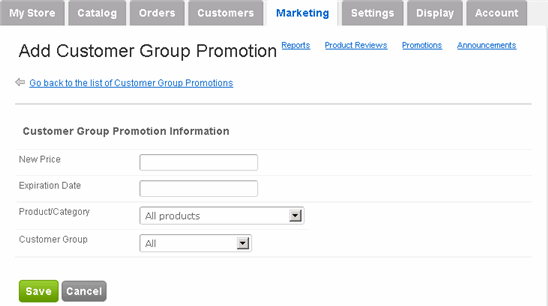
Customer Groups Promotion allows you to create discount for specific groups.
-
New Price: Determine the price of the product that applies only to this customer.
-
Expiration Date: Select expiration date of this coupon. If none, then leave it blank.
-
Product/Category: Select the product (or an entire category) to which the new price should be applied.
-
Customer Group: Select the group for whom this promotion applies.
Click Save.
|
 Add & Edit Promotions & Discounts: